




Sync your FreJun call data seamlessly with Gong to analyze conversations, track performance, and unlock AI-driven sales insights.
Sync your FreJun call data seamlessly with Gong to analyze conversations, track performance, and unlock AI-driven sales insights.
About
Sync your FreJun call data directly to Gong.io for advanced conversation intelligence and analytics.
The FreJun-Gong integration automatically logs all your calls to Gong, enabling AI-powered insights, coaching opportunities, and performance tracking across your sales and support teams.
The FreJun-Gong integration automatically logs all your calls to Gong, enabling AI-powered insights, coaching opportunities, and performance tracking across your sales and support teams.
Media
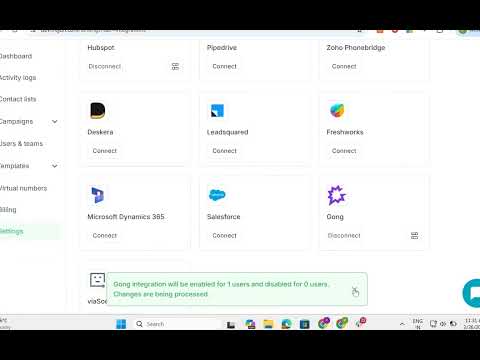
Features
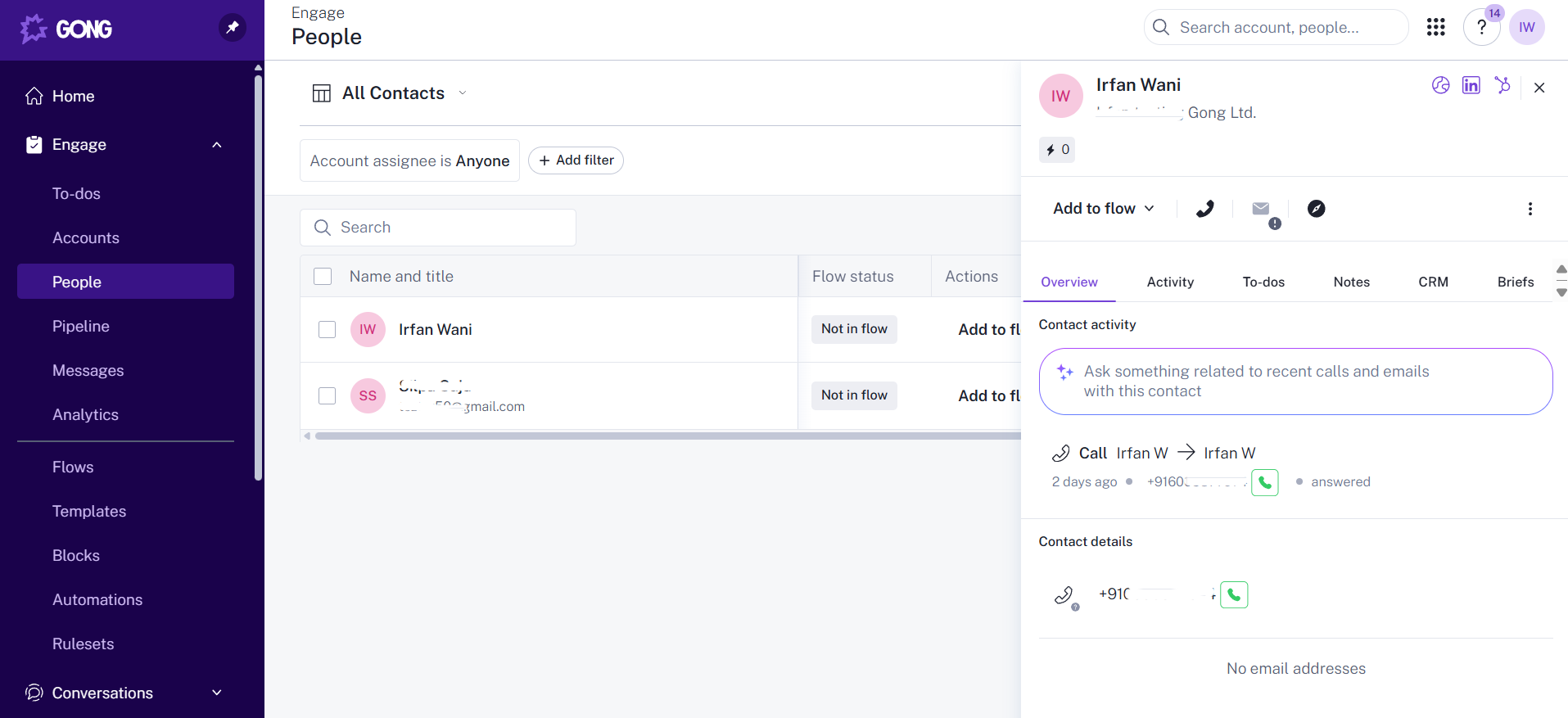
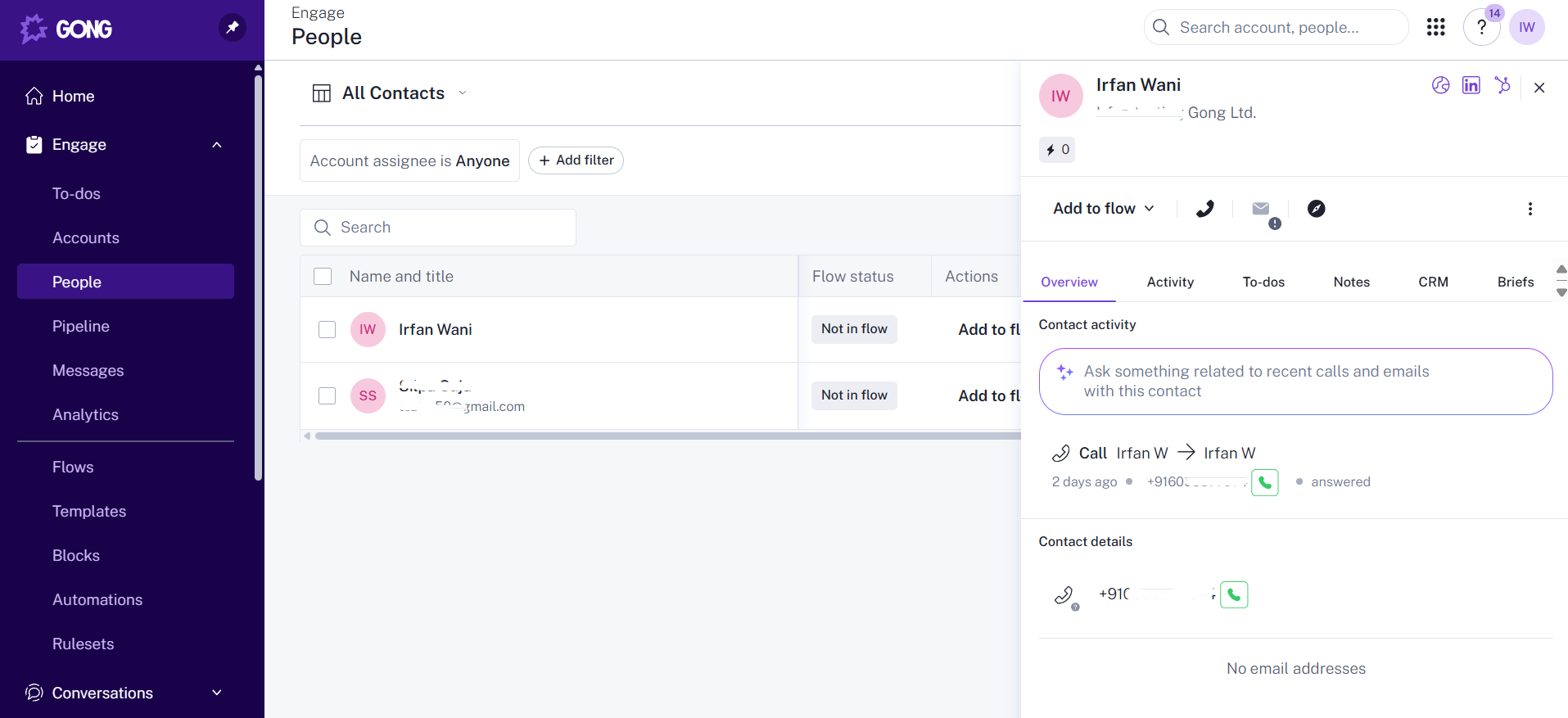
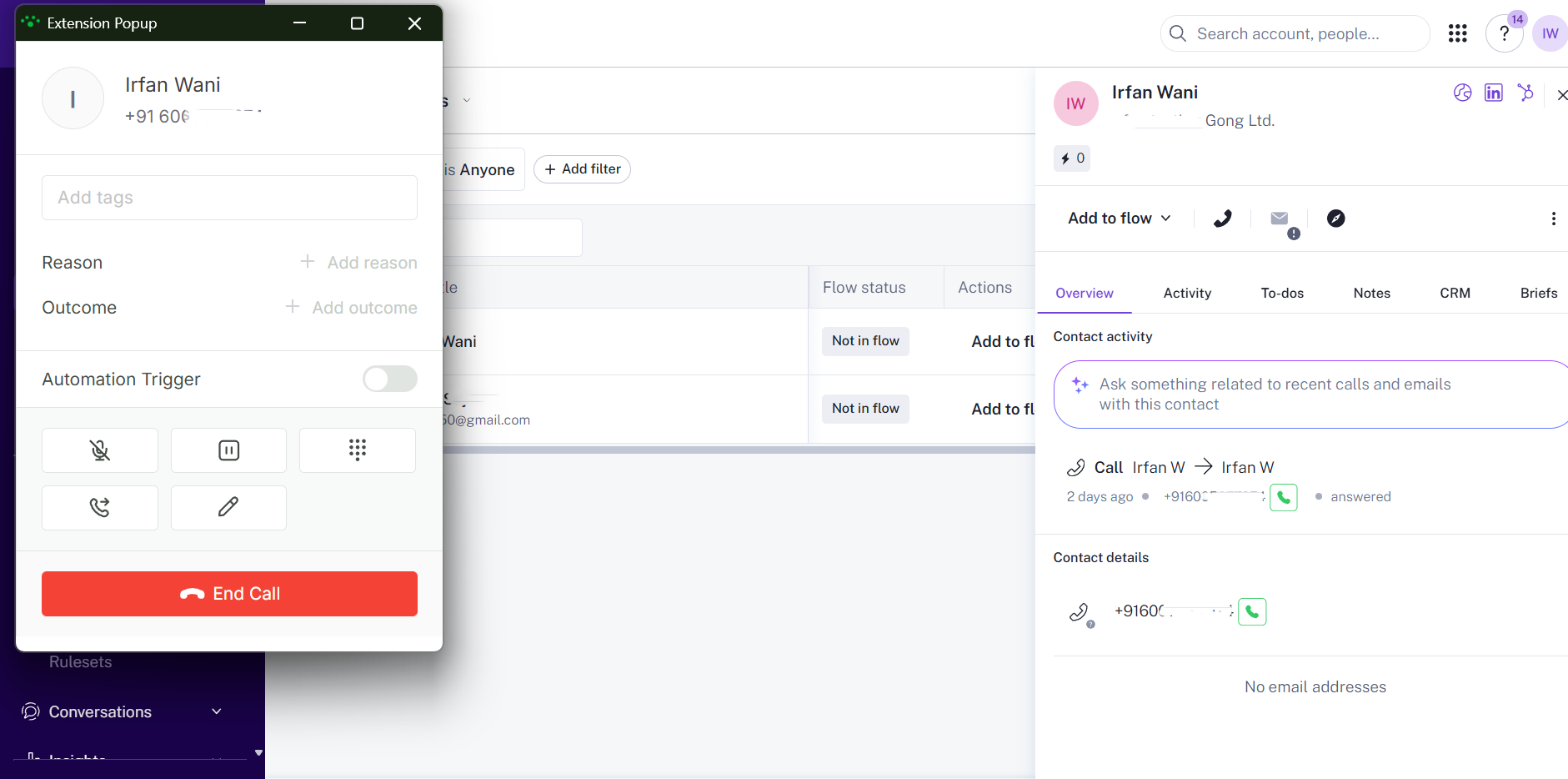
Click-to-call within Gong
All numbers in Gong will have a call icon attached to them. Clicking the icon directly initiates the call (make sure the FreJun chrome extension is installed).
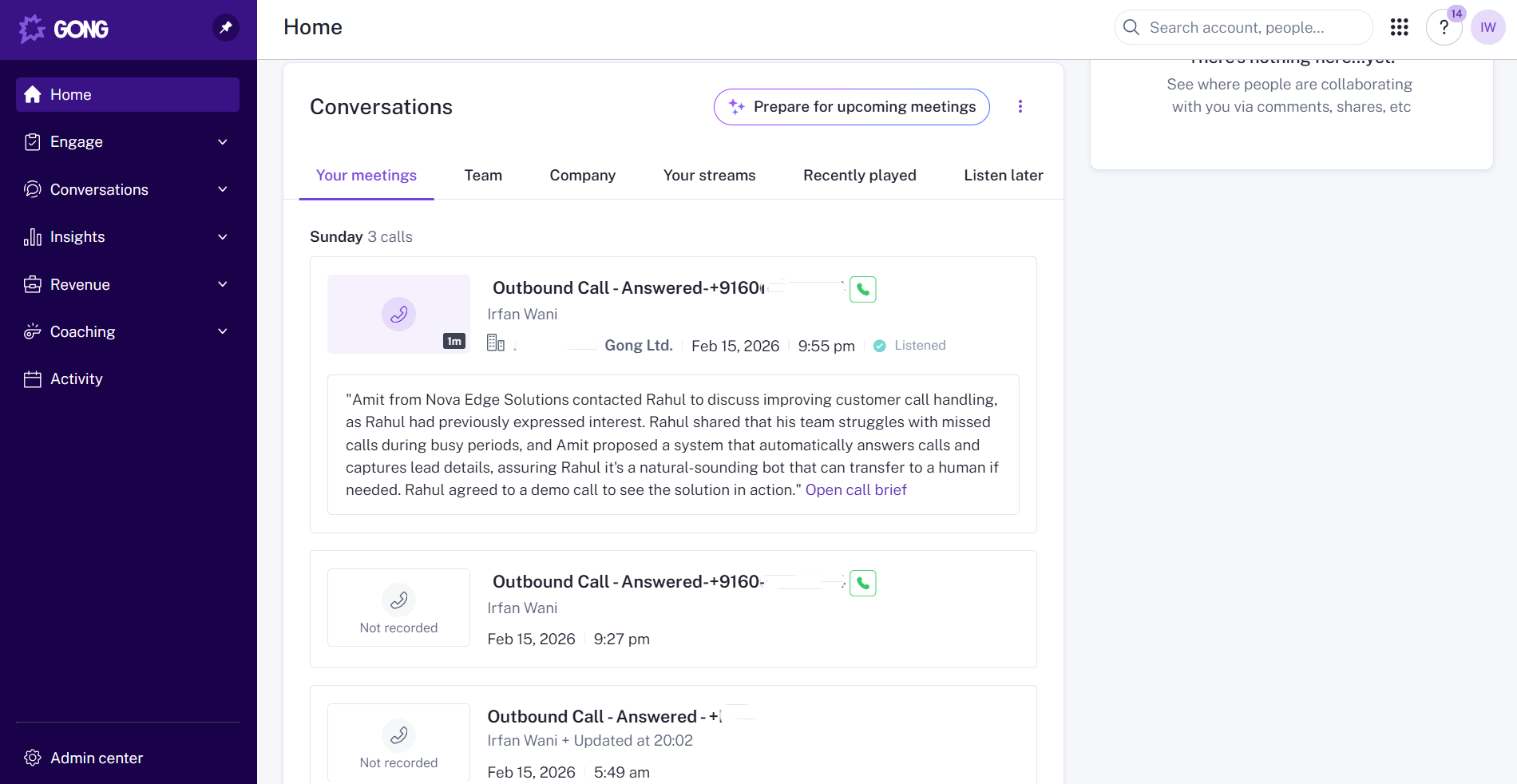
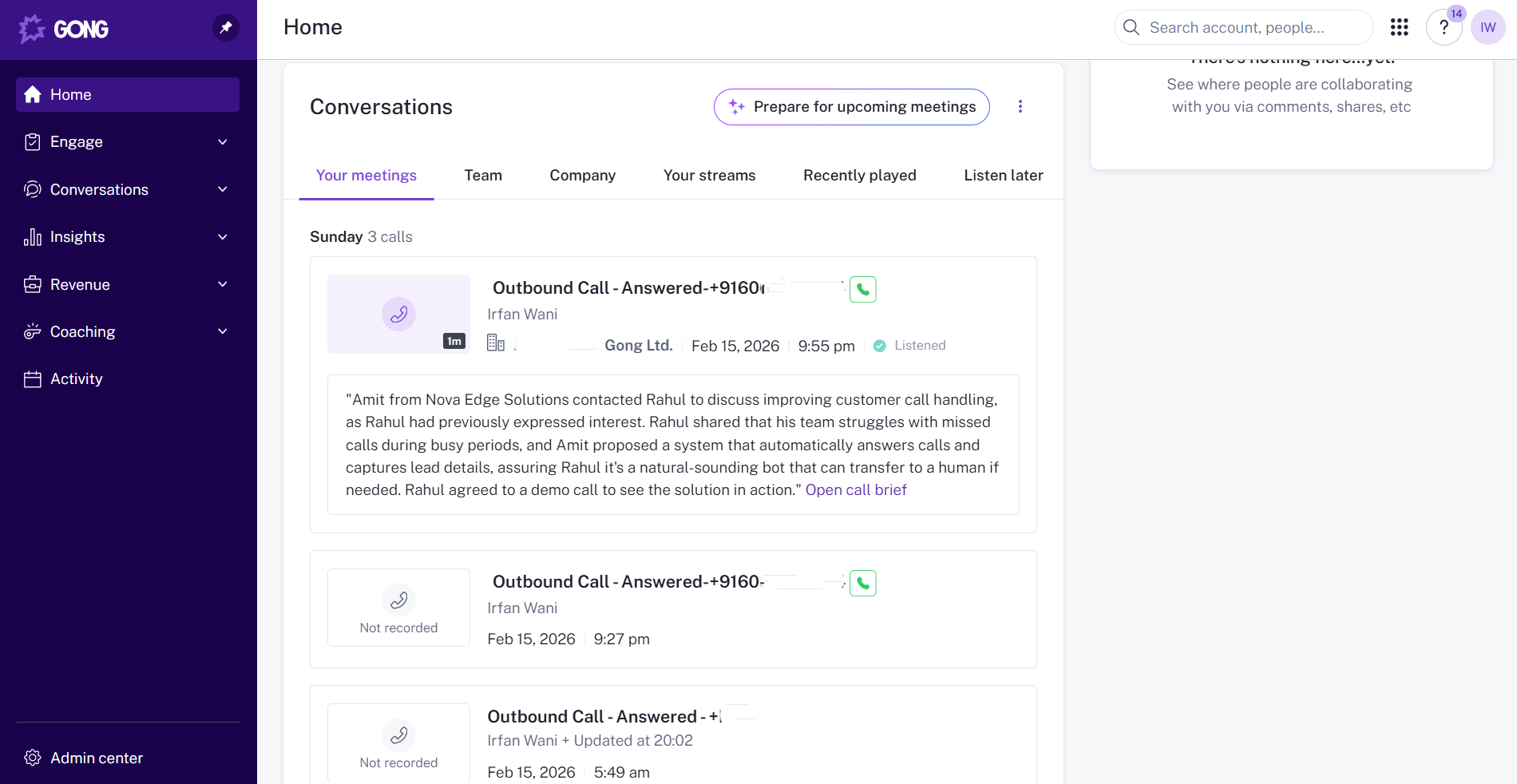
Automatic Call Sync
All FreJun calls are automatically synced to Gong without any manual intervention.
Benefits
Conversation Intelligence
Leverage Gong's AI to analyze call recordings, identify key moments, and extract actionable insights from every conversation.
Sales Coaching
Use synced call data in Gong to coach your team, identify best practices, and improve overall performance.
Centralized Analytics
View all your communication data in Gong's unified dashboard alongside other integrated tools.
Compliance & Review
Maintain a complete record of customer interactions for compliance, training, and quality assurance purposes.
FAQ
The following data is synced for each call:
- Call recording (audio file)
- Call direction (inbound/outbound)
- Call duration
- Caller and recipient phone numbers
- Call timestamp
- FreJun user information (mapped to Gong user)
Yes, but call syncing can be controlled at the user level too. After connecting the integration:
- Go to Settings → Integrations
- Click the Customization icon next to Gong
- Enable or disable sync for individual users
Only users with sync enabled will have their calls uploaded to Gong.
Please note that users must belong to the same Gong account and use the same email addresses as they do in FreJun.
No, the integration is one-directional:
- Call data flows from FreJun to Gong only
- Changes made in Gong do not sync back to FreJun
- User mappings are determined during initial setup using their emails.
User mapping is automatic based on email addresses:
- FreJun matches user emails with Gong user emails
- If a match is found, calls are attributed to that Gong user
- If no match is found, the call sync will fail.
Tip: Ensure users have the same email addresses in both FreJun and Gong for accurate attribution.
FreJun requires the following Gong permissions:
- Upload calls
- Access user information (for user mapping)
- Write call metadata
These permissions are requested during the OAuth authorization process.
No, the integration only syncs calls made after the integration is connected and enabled for a user. Historical calls cannot be retroactively synced.
Integration Diagrams
Data
Conversations
Conversations

Data
Calls
Calls
Requirements
Subscriptions Required
Must have Active FreJun subscription
Must have Active Gong subscription
Must have Active Gong subscription
Authenticating User Requirements
To authenticate this integration for the first time, a user must be a Gong Tech Admin and must have admin permissions in FreJun.
Connect
- Log in to your FreJun Product account.
- Go to Settings → Integrations.
- Locate Gong from the list of available integrations and click Connect.
- You will be redirected to Gong's authorization page. Log in with your Gong admin credentials.
- Review the permissions requested and click Allow to authorize FreJun.
- Once authorization is complete, you will be redirected back to FreJun. The "Connect" button will change to "Disconnect", indicating the integration is active.
Note: You must have admin privileges in both FreJun and Gong with Technical admin permissions in Gong to set up this integration.